
Students
Learn electronics through hands-on practice with PomeLabs
Welcome to the PomeLabs Student documentation. Here you'll find everything you need to start building circuits, understanding electronics concepts, and mastering hands-on practice.
Login Page
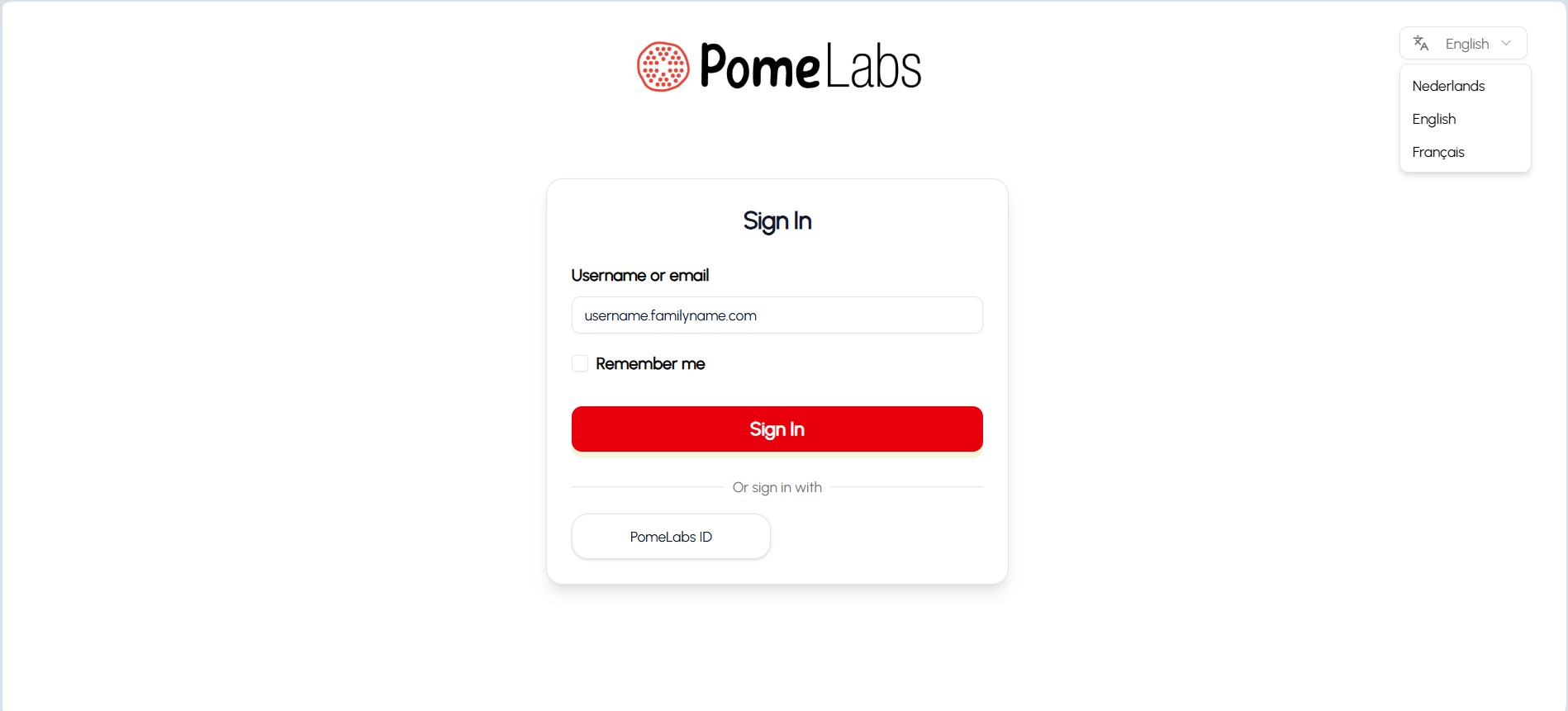
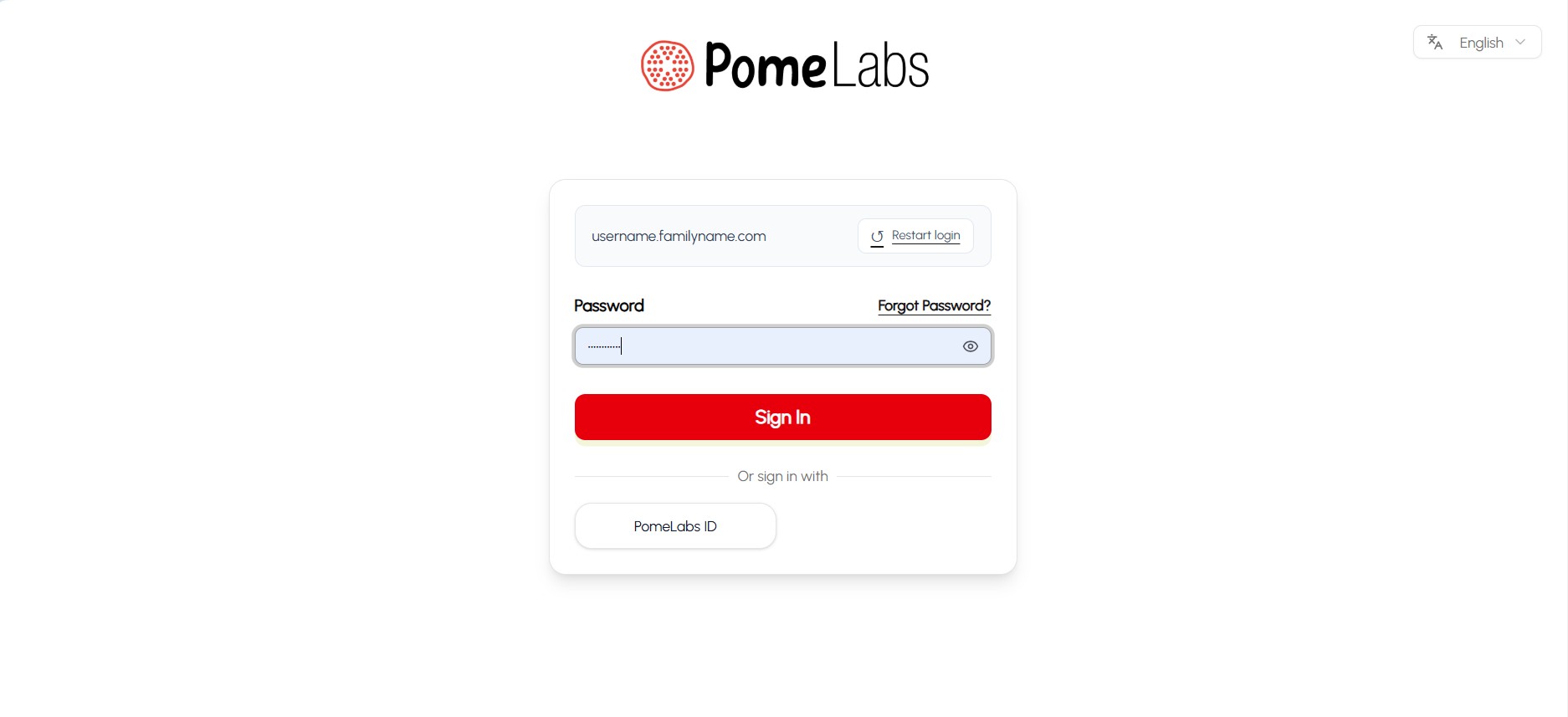
The Login Page provides secure access to the students as we see in the photo the user can choose from the avalable languages (English, French, Dutch). Then write the correct user name or Email that he used to create his/her profile and the password he assigned and click sign in.
Dashboard
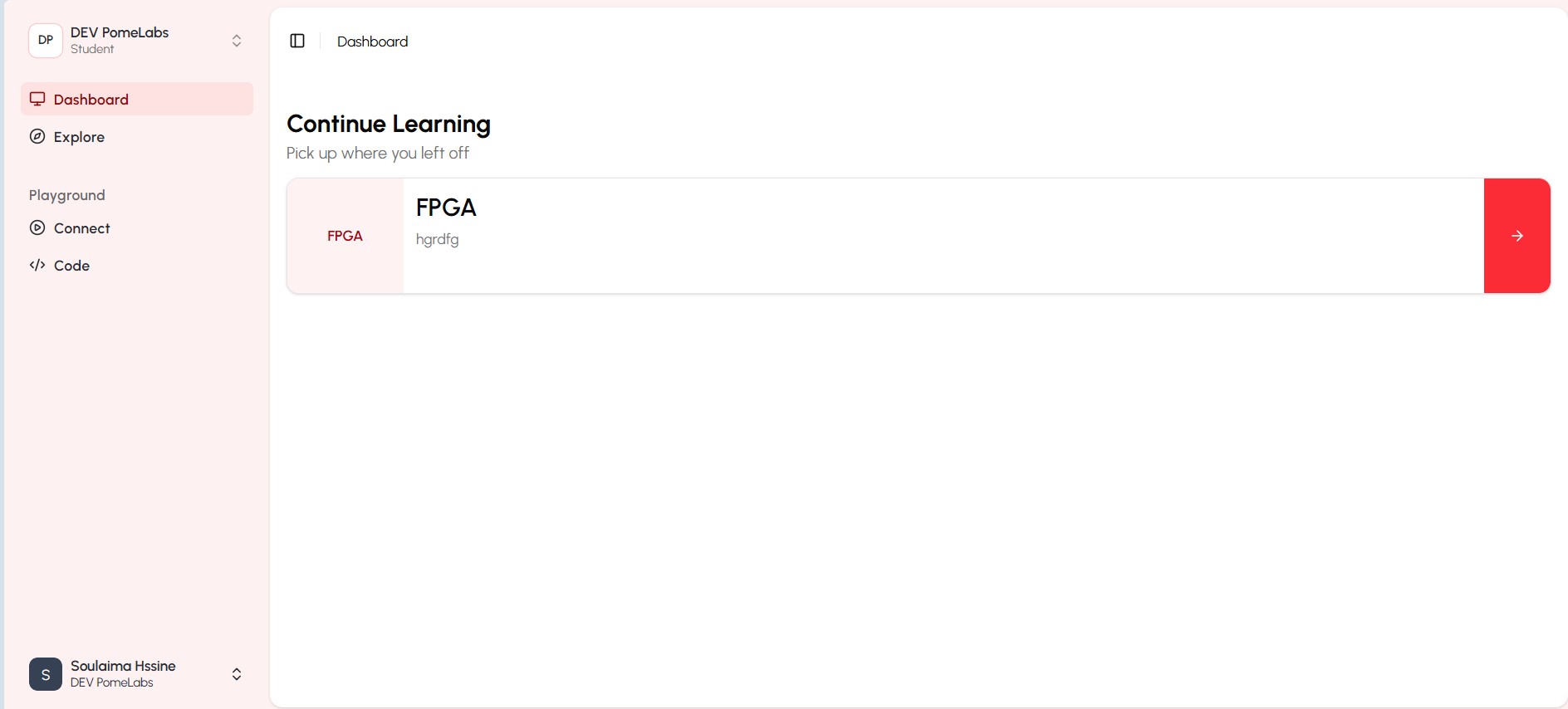
The Dashboard is the central hub for students to access their courses, track progress, and manage their learning journey. It provides an overview of enrolled courses, upcoming assignments, and recent activity.
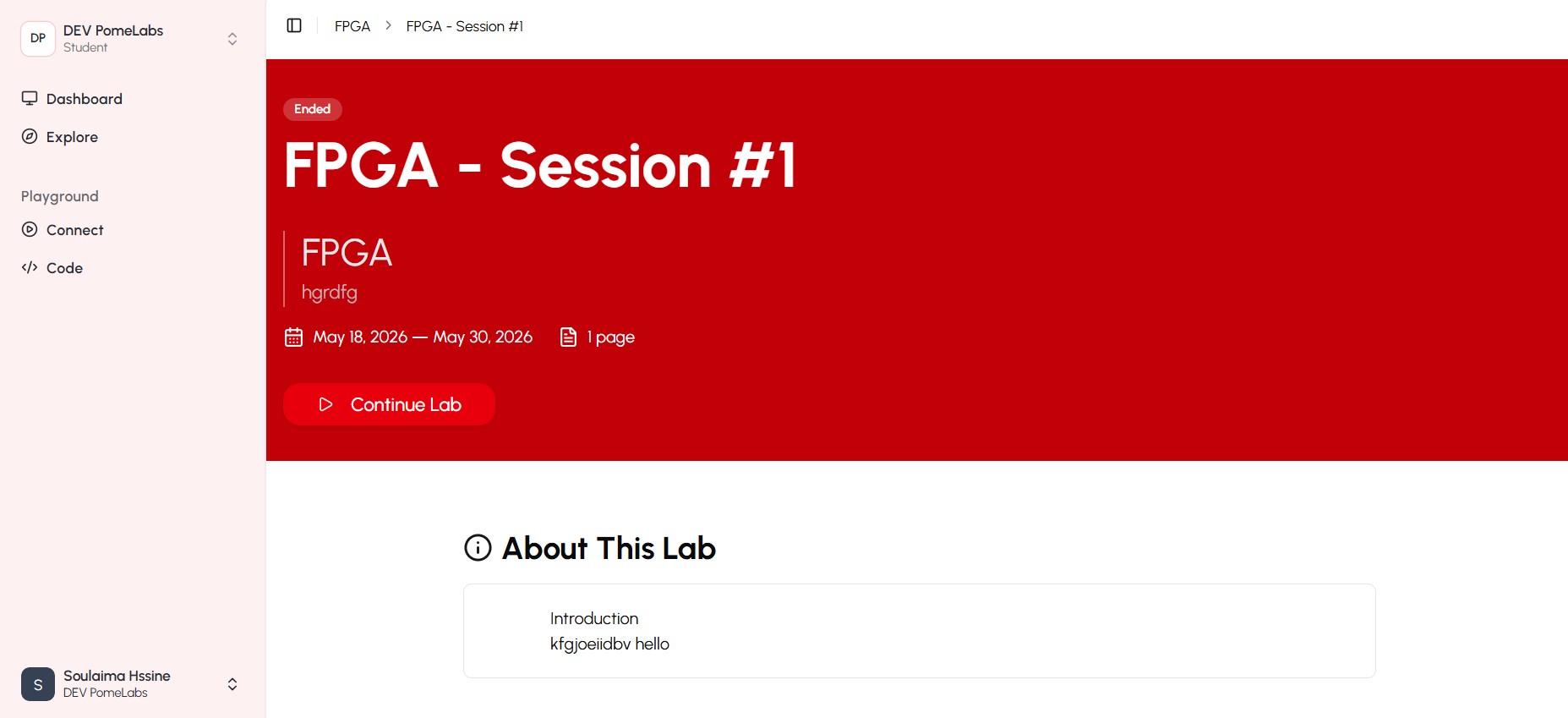
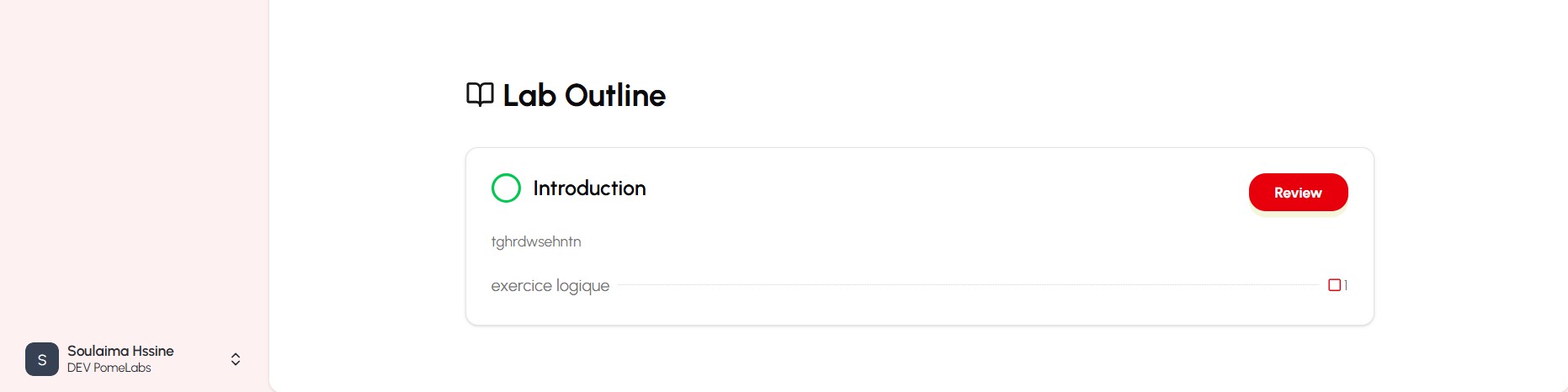
when the student clicks on the session he wants to learn, he will be directed to the course page where he can find all the materials and resources related to that course, such as videos, quizzes, and assignments and the deadline to finish the course before.
Explore
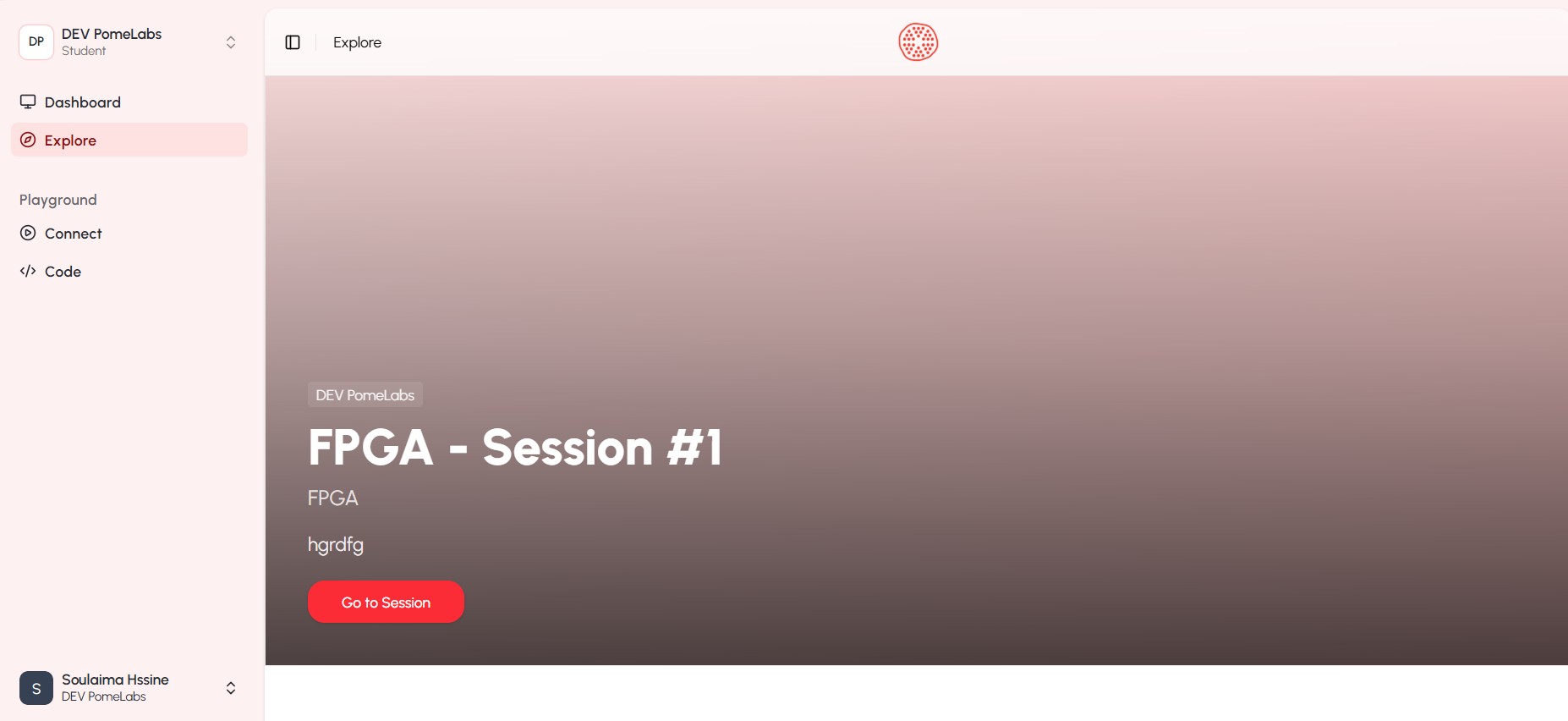
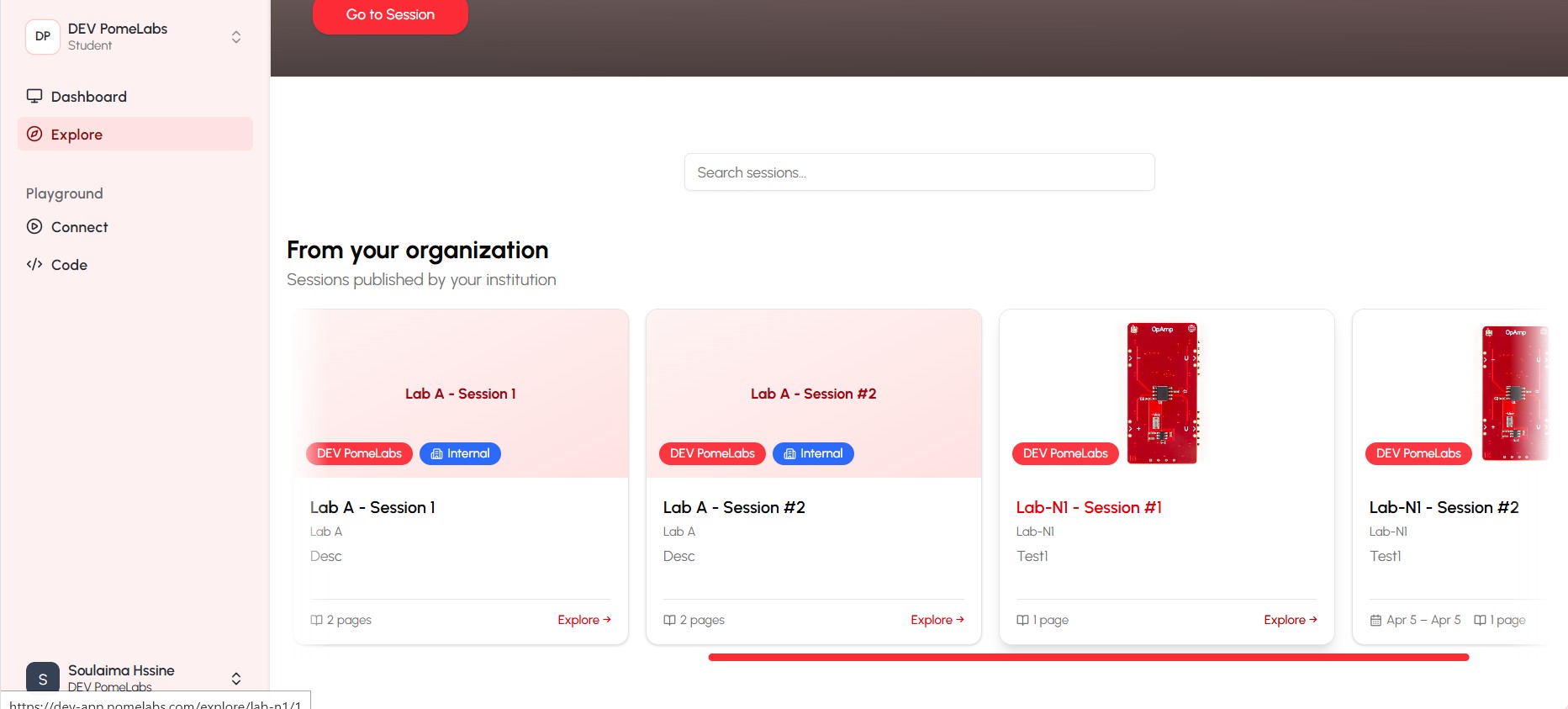
the explore tab shows the students all the courses that are available on the platform, and they can choose the course they want to learn and start learning it, and also they can see the details of each course such as the description, the duration, and the level of difficulty.
Playground
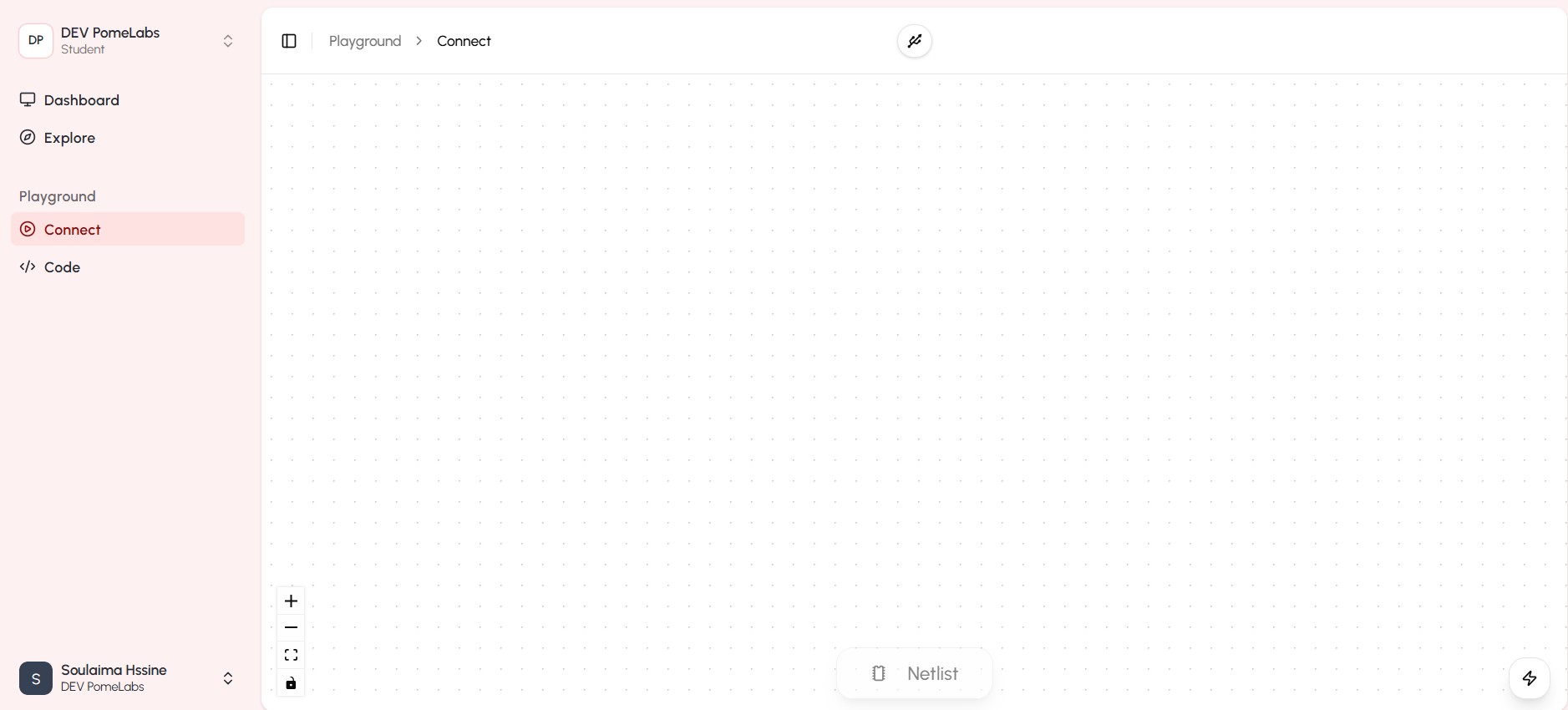
The Playground is an interactive space where students can experiment with circuits, test their understanding of concepts, and apply what they've learned in a hands-on environment. It provides a safe and engaging way to practice electronics using physical components. right after connecting the master to the computer the circuit the student build appear on the connect playground and it's useage is to answer the quizzes and the assignments that are related to the course he is learning.
code
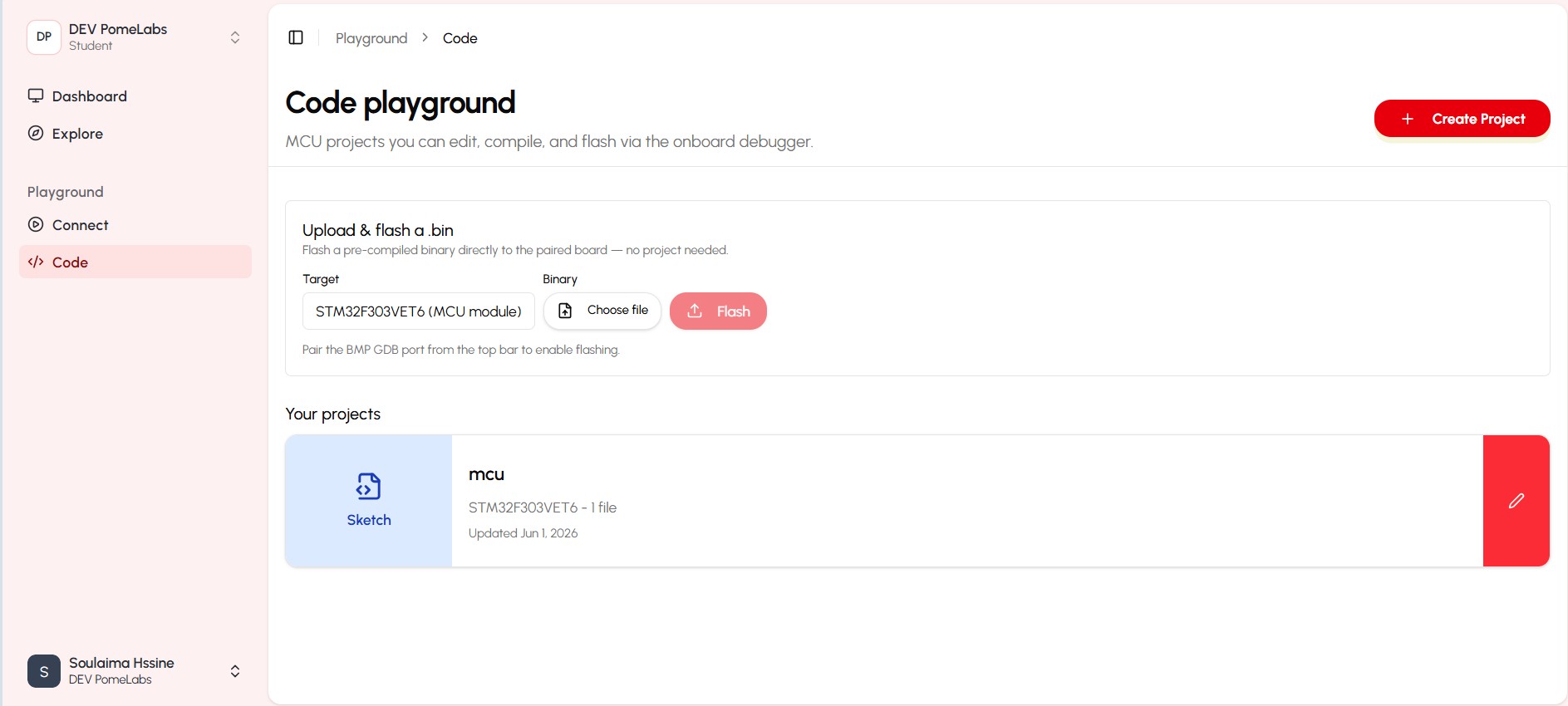
The Code tab allows students to write and test code for their electronics projects. It provides an integrated development environment (IDE) where students can write code, upload it to their devices, and see the results in real-time. This feature is essential for learning programming concepts and applying them to electronics projects. and as you can see you can access existing projects or creat new one.
account settings
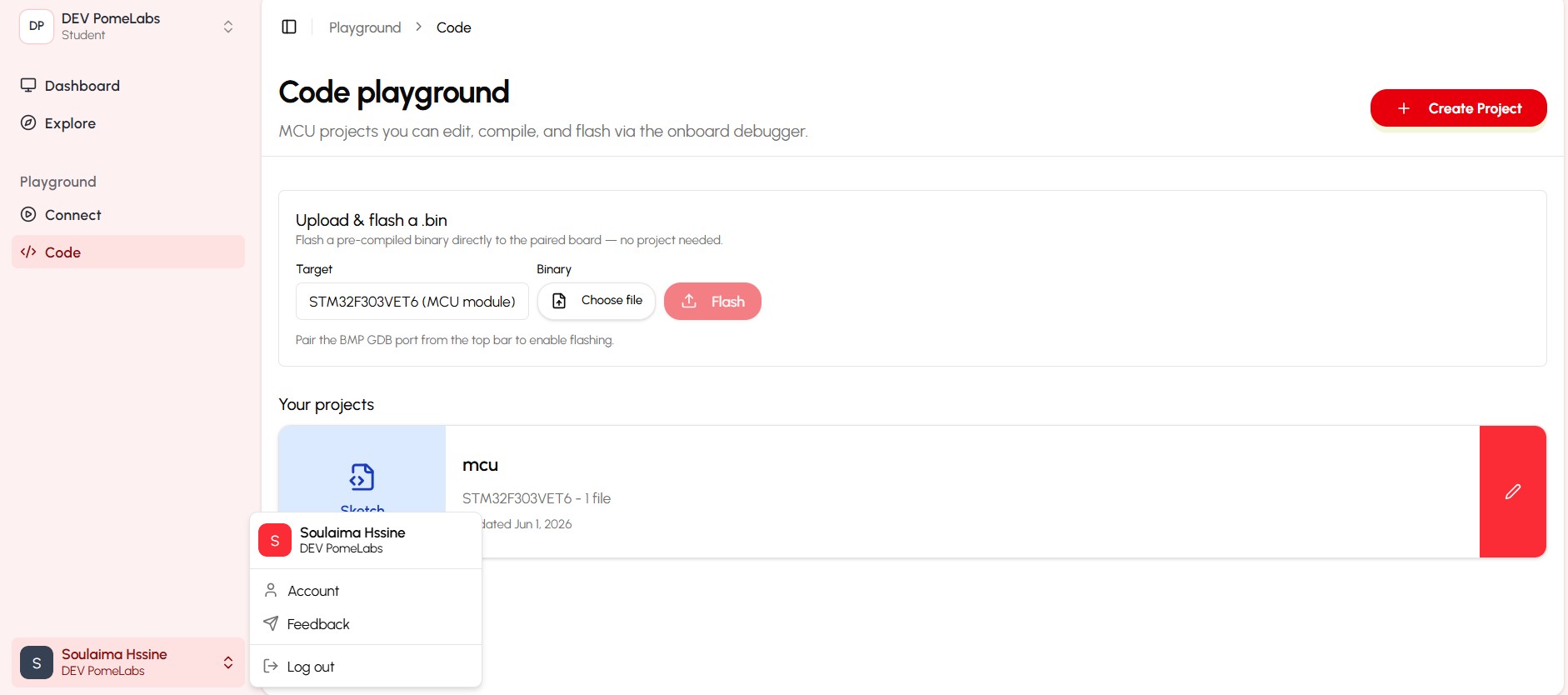
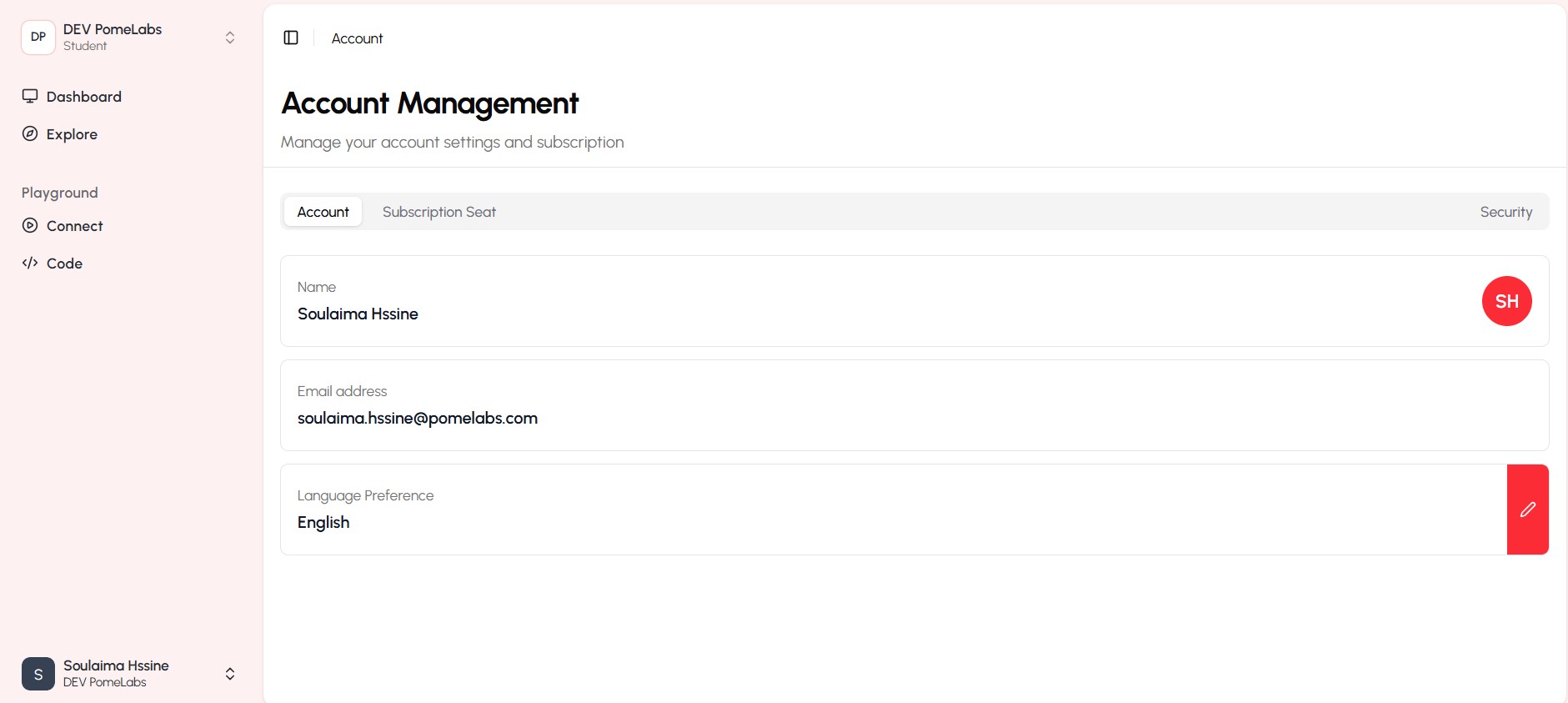
as you can see in the photo the student can access his/her account settings by clicking on the profile icon, where he/she can update personal information, change email, and manage notification preferences.
logout
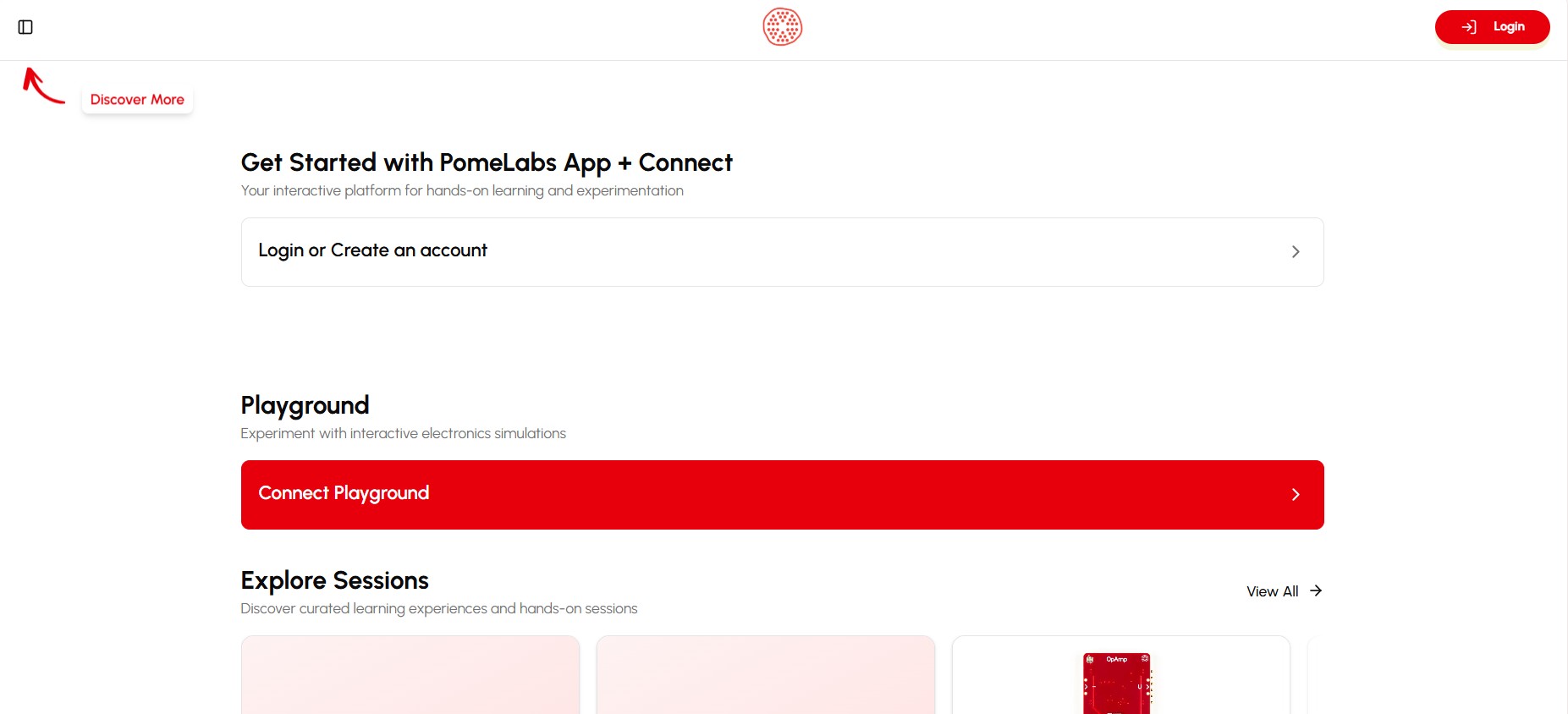
To log out of the PomeLabs platform, students can click on the profile icon in the top right corner of the dashboard and select "Logout" from the dropdown menu. This will securely end their session and return them to the login page.
How is this guide?